Getting Through “The Dip”

Writing is without a doubt, a creative exercise. I know that as a writer if I may call myself as such, I am quite temperamental. Not many things catch my fancy, and there are times when the well of creativity I draw from just runs dry. The dry spell that occurs as a result of a multitude of factors is part and parcel of any creative activity and some deal with it better than others. As for myself, I know exactly why I’m going through all this myself and I’ve decided it was about time I did something about it.

I like to call this dry spell a “dip”. It is a terrible period of time where you are out of ideas, and the vacuum is often occupied by negativity. Everything I thought about or penned down sounded too mediocre, run of the mill, overdone or just simply, “not there”. My natural predisposition to compare my work with the work of others compounded this problem, and I began to question the very point of my efforts.

Everywhere I looked I could see others doing so much better at things I considered my strong point. The incessant “How much money do you earn from this?” questions and subsequent bewilderment at the fact that I purely do it for pleasure did nothing to help either, and these questions got me rethinking my own convictions.

The only way out of this “dip”, of course, is to simply keep at it. Ignore others. Get off the internet; it can be a cesspool of negativity and cynicism.  Always remember the reason why you began writing in the first place. Make an attempt, no matter how silly and irrelevant it might seem to you as you write it down, as that is the only way to get through it. Taking a sabbatical is fine, but don’t let the negativity get to you, the only way out is right through the thick of it.

One might think that his or her writing is inconsequential and meaningless in the grand scheme of things. Think of it this way- if it is, if it really doesn’t matter, it frees you from thinking about rules and restrictions. Don’t let things like traffic, AdSense, or money come in the way of writing the things you want to write.

Pliny the elder said ~

‘True glory consists in doing what deserves to be written, and writing what deserves to be read.’

If you think you can write something that deserves to be read, just get to it. There are bound to be some hiccups along the way. Don’t let the negativity and cynicism and taunts get to your head.

If you haven’t realized already, this is my attempt at getting through “the dip”.

PC GAMING 101 Part 7: Do-It-Yourself versus Pre-Built – Build or Buy?

When it comes to PCs, you can either build one yourself, or get a pre-built PC from a manufacturer, or a specialized PC assembling “boutique”. Let’s have a look at all the options available, and the pros and cons of each of them:

Pre-Built PCs

Pre Built PCs are the ones that manufacturers like Dell or Acer make. If you’re inexperienced and don’t know how to build your own PC, and do not want to take any risks, a pre-built PC is what you should look into.

Advantages of a Pre-Built PC:


1. An all encompassing warranty

A preassembled workstation from a company will have a warranty that covers all parts. That means if your computer fails, the company will work with you until the offending part is found. Individual components always come with a warranty, but some people just do not want the additional hassle involved in diagnosing the problem and dealing with it.

2. Simplicity and Support

Some people are not tech savvy and simply want their system to work right away, with little or no setup time. If something doesn’t work, they want someone they can call for help, like customer service.

Boutique System Builders


This is the option that lies in between a Pre-Built and a DIY system, and is for the kinds of people that want a higher level of customization on their system, like water cooling or hot-swap capabilities that big system vendors generally don’t provide. They provide a higher level of customization and you have more of a say in what components go into your system. You can choose this option if you want a higher level of customization, but can’t be bothered with building the system by yourself. Do remember, these boutique builders do have their profit margins.

Another option is buying components from vendors, either online or from stores, and having them assemble the PC for you at an additional cost. The difference between this and a boutique is that you need to know exactly which components you want, and you know exactly how much the assembly costs. Remember to factor in costs of logistics and getting the assembled PC shipped/delivered to your place once it’s done.


Do It Yourself


Ever since the early days, users have had the option of assembling their own PCs. Building a PC yourself has its share of advantages and disadvantages, and although there are many people out there who prefer building their own PCs so that they can customize the specs according to their requirements, you really need to know what you’re doing.


Advantages of Building a PC:


1. It’s Cheaper to Build

If you do things on your own, you will certainly cut down the cost of middleman, which in turn will help you save money on assembling as well as testing. The more powerful your intended desktop computer will be, the more likely you will be able to save money by building your own. This becomes significant when you consider higher-end PCs or Workstations, as Manufacturers or Boutiques will have a considerable markup.

2.  You get exactly what you want

Pre-Built PCs come in a pre-determined configuration, which is because the manufacturer selects it based on what’s the easiest to assemble on a large scale. This means that you either pay for things that you don’t want, or you don’t get the things that you want despite paying for it. Also, there’s no guarantee that the components used in all the machines are the same.  The manufacturer may switch suppliers due to availability, costs, etc which means that two of the exact same models of computers can have very different parts.

3. No Bloat Ware 

Computer manufacturers often install software on their machines in an effort to differentiate themselves from their competition. What really happens is that there is extra junk on your desktop that you can ignore, deal with, or uninstall. This takes time and effort. When you create your own machine, the only software installed is what you install.

4. Upgrade as and when you want

When it comes to upgrading your PC, if you’ve built it yourself it means you know which part or parts to swap out for new ones, and how to do it.

5. Experience

Building a computer gives you a lot of experience. The physical putting-together-of-everything phase, while also educational, doesn’t compare to the research you’ll do when building a computer. If you care about what’s going into your CPU, you’ll learn all the terminology and what does what in a computer. It’s pretty useful. And of course, the actual building is fun too. And even if you fry your motherboard, you’ll get to learn what NOT to do afterwards!


Disadvantages of Building a PC:


1. It’s more difficult

There is of course a fair share of difficulty involved in building your own computer. You may have to face your share of challenges, especially if you are not familiar with setting up computers. Picking out the parts to build a computer system from can be an extremely frustrating process. This is particularly true if you are not familiar with the technology and are building your first computer.

2. No All-Encompassing Warranty

All computer parts have the risk of failing. It doesn’t matter which company made them or which company installed them. Parts will fail. A preassembled workstation from a company will have a warranty that covers all parts. That means if your computer fails, the company will work with you until the offending part is found. Individual hardware vendors will not work with your computer as a whole unit.

3. Incompatibility Issues

You have to worry about sizes, compatible components, wattages, etc. If you don’t research things properly, you could end up with parts that don’t work well together or maybe won’t even fit into the case that you have selected.

The Bottom-line

It all depends what the computer is for. Usually, if you are spending less than Rs. 50,000 on a computer, or just want a simple desktop system, then I recommend a prebuilt, simply because you get a copy of windows already packaged with it and also the hassle of building it yourself if you are a first time builder may not be worth the slightly better overall quality of the components. Manufacturers are able to get discounts because they buy things in bulk. In addition to this, the budget market is extremely competitive which means it is often cheaper to buy a basic computer for just browsing the web and doing productivity software than it is to build one yourself.

However, when it comes to building a High-end system, a workstation or a gaming PC, building one yourself is the way to go.  All it takes is research and the willingness to put the things together, and it offers immense satisfaction and also experience and know-how. You can build one tailored to suit your exact needs, right down to the aesthetics.

It comes down to what you need, how much it will cost, and if you are willing to put in the time. If you are willing, then you can get exactly what you need and potentially save money in the long term. But don’t overlook the potential hassle and time you might have to put into building it.

In the next part of PC Gaming 101, I’ll talk about some valuable resources that you should use while researching and building your PC.


On “Content Creation”

Everywhere I look and everyone I see seems to look at writing on the web as a money making opportunity and scoff at the thought of it being a creative conduit. It is indeed sad and pathetic to believe that the essence of writing is to get a nibble at the carrot at the end of a stick, a chance to get a payout, to gain some places in a ranking system, to pander to the reducing attention span of people on the internet and cynically copy or steal, for the reasons mentioned above. Throw around buzzwords like rankings and “shareable content”, make a pseudo numbered list and then the unkindest cut of all – saying it’s all “so easy”.


Indeed I am nobody to argue the growing popularity of giving people what they want in the form of lists and slideshows, and indeed I am no expert on the diminishing feasibility of making money through writing on the web. And, the internet never lets me forget it- the fact that I’m a nobody, when it comes to providing easy, shareable content.


I’m sure what all this isn’t nearly as eye-catching and accessible to our reduced attention spans as “5 reasons you will fail as a blogger” or “This man’s story of overcoming a creative block will inspire you and make you cry”, and I know this doesn’t count as quality content and I do not disagree.


I’m even fighting my natural tendencies of launching or attempting to launch a scathing attack. Yes, anger and frustration have helped me produce what I believe are my best works. This is important as I’m beginning to feel like I’m using the anger and resentment as crutches, and my over-reliance to them might cripple me and then turn me into a “creative paraplegic”.


I keep getting told to consider more “lucrative forms of content”. People tell me there’s “no point” in writing anything anymore, especially about the things I write about, where there are thousands upon thousands of people writing the same things, and millions of others copying them for cynical cash-ins. Before someone gives me the “good artists copy, great artists steal” spiel, I’d like to say that stealing and reinventing is not what I’m talking about here. I’m talking about copying outright, ripping off wholesale, in an attempt to, as I previously said – get some “Dolla Dolla bill Yo” for the lack of a good enough term for it.


This sort of wholesale ripping off of things isn’t just cynical- it’s downright harmful, toxic even. For every major news outlet out there, there are tens of thousands of smaller websites that simply copy, some give credits to the original while many do not. While I’m not against individual expression, I believe there needs to be some sort of significant, positive change. Some “innovation”, if I may use a term bandied about in the tech sphere all the time. I simply do not understand how anyone can be satisfied as a blogger, by simply copying and pasting content found on other websites. The news broke, it’s already out there, there’s no need to reiterate it.  Bringing something new to the table, a new idea, some wishful thinking, even some fantastical and wild speculation- it’s all good, if it’s something different and it’s an original thought.

When people say tech blogging is “easy”, they make this assertion based on the fact that so many thousands of people are simply taking facts, figures, images, and re-creating, copying, and re-posting things, just for the sake of driving traffic, and squeezing every penny out of ad revenue services. In that sense, it is easy. “Content is king”, they say. Nobody ever specifies the nature of said content anyway. It’s all fair game here, and originality is not really necessary anyway.


I, for one, would like to see more originality, more opinions. The gadgets themselves may have gotten me hooked to the world of tech blogging, but the varied opinions of industry veterans, columnists, analysts- that’s what has kept me here. I love reading well formed, articulated opinions about the goings-on in the tech world. Some are frivolous, some serious but what’s important is that they put out something that’s not just a list of specifications, or an album of leaked images or a horrendous attempt at squeezing in as many “hot keywords” as possible into the blog post. Even though I may not agree with the opinions mentioned by them, the way these people are able to put those ideas across is what makes them engaging.


In this sense, blogging is much more difficult. Coming up with opinions, corroborating these opinions with proof, statistics, and links to other content in a way that would help the reader to understand the opinion better, and not just attempts to get those backlink-forward link-etc link things to improve SEO, is not easy at all.


Bloggers go to great lengths to make sure their posts reach as many people as possible. What’s sad is that the content itself is just some formulaic mishmash of keywords, images, and other things that need to be there to appease the mighty SEO overlords. (Hail Google). If only they could concentrate on the content itself, rather than the payout, this whole thing wouldn’t leave such a cynical aftertaste.

My views on Google's new Material Design UI

Google introduced a UI refresh as a part of the Android L developer preview at their recently concluded developer conference, Google I/O. A lot is being said about the new design language labeled “Material Design” and Google has provided extensive guidelines to help developers design their apps in this way, moving forward. A very important aspect of this design is unity, as Google’s VP of design Matias Duarte says: 

We wanted one consistent vision for mobile, desktop and beyond, something clear and simple that people would intuitively understand.

Unity is important for Google as it will make it easier for users to access Google services through different devices. Surely, Google has taken design cues from both Microsoft and Apple in its material design, but it does not look like a patchwork of disjointed ideas- it seems very cohesive, and thoughtful.

It’s all about “Paper Craft”

Paper is the fundamental design paradigm of material design. Every pixel drawn by an application resides on a sheet of paper. A typical layout is composed of multiple sheets of paper. 

Toolbars and menus can be configured to look and feel like papers on a notepad.

Toolbars and menus can be configured to look and feel like papers on a notepad.

Depth as Hierarchy, not Ornamentation

In previous versions of Android and iOS an excessive amount of textures, gradients and shading was used which appeared overdone, disjointed and ugly. IOS 7 saw a radical change towards taking away all these superfluous graphics giving rise to a “flat” UI paradigm without any gradients, shading, etc. 

Instead of going to extremes as is the case with iOS, Google has adopted a more subtle and nuanced approach. Material Design uses depth not as ornamentation, but as a way of communicating hierarchy and as a way to focus users’ attention to a task. Shadows can be added to aid the perception of depth and to highlight objects. 

While the “Flat UI” paradigm is all about taking things away (gradients, shadows, highlights, etc), this new philosophy seems to be based on adding movement, animation and colors to spruce up the user experience. 

Responses to Input

Until now, precious little was done in terms of providing users some positive feedback while interacting with the system/application. Material design incorporates visual and motion cues in an attempt to engage the user, providing input acknowledgement through animated effects that look quite refined, and not overdone.

Upon receiving an input , the system provides an instantaneous visual confirmation at the point of contact.

Use of Color

Android's Gmail app, before and after the new Material Design interface.

Android’s Gmail app, before and after the new Material Design interface.

Typography

Taking a leaf out of the Windows Phone UI playbook, Material Design seems to have a distinct focus on typography. The Roboto font, a mainstay on android devices ever since android 4.0 ICS, is modified slightly; it is wider and rounder in an an attempt to be more pleasing to the eye, especially since text is almost always white juxtaposed against a vibrant background in the main title bar of applications. 

Simplified Icons

The trend of moving towards more simplistic icons instead of gaudy texture rich ones is pretty evident ever since android ICS and can also be seen in custom OEM skins like HTC Sense 6. 

Each icon is now reduced to a minimal form, every idea edited to its essence. Even the navigation buttons have been reduced to geometric shapes. The designs ensure readability and clarity even at small sizes. Every icon uses geometric shapes, and a play on symmetry and consistency gives each icon a unique quality. Emphasis is laid upon consistency of icons for both mobile and desktop icons, and small details like rounded/sharp corners have been touched upon.

Focus on Imagery

imagery-focusThe focus on visual content is also very obvious on observing the new Android L design. The image takes center stage, and designers are encouraged to use vibrant and bright imagery without using stock photos. The focus on vibrancy of images has always been a part of the smartphone user experience, users prefer oversaturated images and vibrant colors in the photographs they take, they like colors to “pop” rather than look natural. The popularity of AMOLED display technology and display calibration by OEMs that favors the oversaturated over the true to life colors supports this observation. 

Just like the Windows Phone UI, Material Design relies on images that go right up to the edges of the containing area without any window borders. It’s all big, bold squares/rectangles rather than icons and windows. 

The “Card” Concept extended

card-example

Google has been shifting to the “card” user interface, a rectangle or tile that contains a unique set of related information. Cards are typically an entry point to more complex and detailed information. These cards or tiles have been a part of the UI in Google Now and a host of other applications like Google+. The way that these tiles update the user with live information is similar to Microsoft’s live tiles in the Windows Phone UI- for instance, showing the details for your next appointment on the calendar tile. Cards provide the user with summarized and glance able information and will be used extensively in the future as the focus on wearable technology increases. 

Moving Towards Consistency

Google’s new design language is a good refresh, and brings a lot of good things to the table in terms of design. However, one of the most important aspects of Material Design is the depth and detail of the documentation and its systematic nature. After a long era of designers and developers creating Android experiences that often feel renegade or pieced together, Google have undoubtedly stepped up their efforts to standardize and improve the UI and UX across their app ecosystem. If it’s adopted, it’ll certainly lend a much-needed consistency to that world. 

Keeps up with current design trends

Google is trying to incorporate uniformity by  trying to get ahead of all of the screen sizes they have going now and provide some real structure. It seems they really tried to set up a fail proof way to design around all of the screen sizes, from the desktop experience to Glass to the watch. The effort is extremely expressive and is obviously about controlling the experience. Instead of trying to impose a strict visual aesthetic, Google defined a set of principles that leave more freedom to individual designers, while still pushing their numerous apps in the same consistent direction. 

In Conclusion…

Many will see Material as a further extension into a flat era of design, in the same way Windows 8 and iOS 7 use large areas of solid color and wide open spaces with a focus on typography. I think it’s more than that – the current design trends are the only sane way to support a wide range of display sizes, ratios, and pixel densities. Physics, animation, and some of the layering effects are only now possible because the hardware allows it to be. The new design has elements that dynamically shrink and expand, adds more white space between elements, offers lots of animation, and provides a more 3D look emphasized by shadows and lighting effects. It’s designed to put the emphasis on the most important content of a screen. Although these are just visual effects today, they could be handy in future years with 3D displays and the possibility of tactile touch screens that actually raise portions of a display. 

Maybe this is Google’s way of filling the void left by the demise of richly textured skeuomorphic designs? In any case, we can only hope it will add a little warmth and humanity to digital design and save us from a world where every app looks and behaves the same. Overall? I like it, I’m glad it’s here, but I don’t find myself bowled over by any of the components of the new system. It’s a well-considered stride in a necessary direction. I see this a great effort forward in laying the groundwork for a very Google-driven future ecosystem.

The video below reveals how the Material design language works across all devices Google touches, from smartphones to Glass to wearables.

PC Gaming 101: Part 6: Cases

PC gaming is quite big in India. As games become more intense and compelling, gamers find themselves wanting the latest and greatest hardware to run these games smoothly. That being said, the majority of gamers wanting to build or upgrade their machines don’t have much of a clue, and are often at the mercy of vendors and salesmen, due to which, more often than not, they end up making the wrong decisions. This is an attempt to address this lack of information, and help all PC gamers make the best of their resources. This is PC GAMING 101.

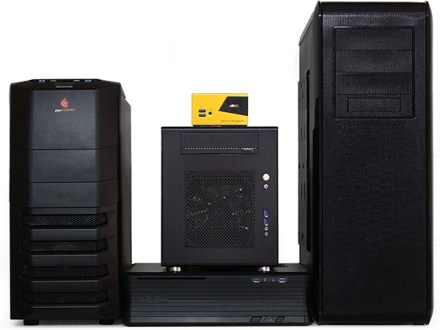
Getting the right case or cabinet for your gaming PC is an unnecessarily complicated thing to do. The way computer cases are classified has changed over time. Once upon a time, it depended upon how many 5.25 inch bays the case had. Then, the classification was based on the overall height of the case. These days, those classifications are like guidelines as opposed to actual standards. The traditional size categories are shown below: 

Source: Tom's Hardware

Source: Tom’s Hardware

Full Towers are like the SUVs of the computer case world. They can have 5 or more 5.25 inch external drive bays, they range in height from 22 to 27 inches and they always support full size ATX, almost always support EATX, and at times even the not-so-standard XL-ATX as well. The funny thing about full towers is that apart from accepting more drive expansion, providing better cooling for hot running, inefficient setups like running 4-way graphics configurations, and having extra space for superfluous stuff like custom liquid cooling loops, they don't bring much to the table in terms of performance over Mid Tower cases. But they do tend to be easier to work with if you've got big hands, and the top bays are easier to reach when the case is sitting on your floor. All in all, Full Tower cases are more like luxury items than must-haves.

Mid Towers are the most common cases for custom builders, have 3 to 4 external expansion bays, stand 17 to 21 inches tall, and almost always hold a full size ATX motherboard. But, they don't have a lot of extra space for drives and what not. Expect to find 6 to 8 Hard Drive mounts in a typical Mid Tower, and enough cooling and space to comfortably handle 2 graphics cards in crossfire/SLI.  

Computer Case form factors- Full Tower (Extreme right) Small Form Factor (Center), Horizontal Desktop (Bottom Center), Mid Tower (Extreme Left)

Computer Case form factors- Full Tower (Extreme right) Small Form Factor (Center), Horizontal Desktop (Bottom Center), Mid Tower (Extreme Left)

Mini Towers are a great compromise between size and expansion. They have 1 or 2 external bays, stand 14 to 16 inches tall, and can host an mATX motherboard usually. They are nearly as versatile as mid-towers in applications ranging from office workhorses to high-end liquid-cooled SLI-powered gaming monsters because of their less-imposing profile and easier transportability. Most Mini Towers are suitable for use with only a single graphics card with adequate cooling while some may be okay for two. 

Anything taller than 27 inches is called a Super/Ultra Tower , and a case whose size can be modified by stacking components on top of each other, for, say, cooling options or drive mounting, is called a Mod Tower. Desktop or Horizontal desktop cases are not exactly towers, they are slightly different, and they used to be the dominant case size once upon a time but now they are more of a niche, and they come in various sizes, from tiny ones that are so small they need an external power brick, to huge ones that can hold server class motherboards and large RAID arrays of hard drives. 

Small Form Factor or SFF can come in almost any shape, from cubes to equal sided desktops to normal towers, but the one thing that they generally have in common is the support for a mini ITX motherboard max, with minimal drive mounting options and only sometimes support a graphics card, only one of them max. Cube Cases are called so, because of their roughly cubical size, and are available in a wide variety of configurations. 

There's other stuff out there, but these are the main form factors available today. 

Prev>> Part 5: Gaming Monitors

PC Gaming 101: Part 5: Gaming Monitor Buyer's guide

PC gaming is quite big in India. As games become more intense and compelling, gamers find themselves wanting the latest and greatest hardware to run these games smoothly. That being said, the majority of gamers wanting to build or upgrade their machines don’t have much of a clue, and are often at the mercy of vendors and salesmen, due to which, more often than not, they end up making the wrong decisions. This is an attempt to address this lack of information, and help all PC gamers make the best of their resources. This is PC GAMING 101.


If you own and regularly use a PC, you know what a minitor is. However, when it comes to gaming, not all monitors are built equally. So, what makes a monitor "good for gaming" ? (Well for starters it should connect to a device that runs videogames.) Let's have a look at the things you should look out for, while choosing a monitor for your gaming setup: 

1. Inputs 


Most gaming monitors these days have DisplayPort, HDMI and DVI input ports, or a combination of the three. (You can read more about display technologies and standards in Part 4, here). If you're gaming on a PC, and you want to keep things as simple as possible, you should go with DVI and DisplayPort with confidence. HDMI will work fine, unless you want the resolution to be higher than 1080P, or a refresh rate over 60Hz. HDMI 2.0 is coming out soon to address these issues. Not that HDMI inputs are totally useless though, you can use them to connect secondary gaming devices such as gaming consoles and switch between your devices as you choose. 

2. Size Matters 

Yes, a monitor's size does matter, but not for the reasons most people think it does. A larger monitor just puts a larger image in front of you, and isn't any more difficult for your graphics card to power. So you should pick a size that's comfortable for you, for the distance you want to sit from it. The spec that determines how hard it is to power the monitor, is the resolution. A 24 inch 4K monitor will be about 4 times more difficult to drive than even an 80 inch 1080P "Full HD" TV, because of the sheer number of pixels. Higher resolution monitors deliver a clearer, more "retina-like" display so resolution isn't a problem, in and of itself. It's just a factor you need to consider in your overall build/upgrade budget. 

Now that we've gone through the basics of monitors and displays, let's look at what makes a monitor "good for gaming". 

Response Time  

The rendering process of pixels on an LCD/LED display is very different from the old, tube style CRT monitors, and when the image updates, the pixels gradually shift from one colour to another. So, the slower the pixels of the monitor, the more "motion blur" or ugly streaking that you'll see behind moving objects on the screen. 

So, while buying a monitor for gaming, look for a monitor with a "Grey to Grey" response time of

8-16 milliseconds for  casual use

1-2 ms for competitive use.  

Refresh Rate 

60Hz versus 144 Hz

Expressed in Hertz, the refresh rate is the number of times an image is sent to the display, every second. If your eyes are getting more updates per second, you're getting information slightly faster than your opponent. It's a definite advantage, and the fastest monitors these days can run at upto 144 Hz, at 1080P. That means you can get screen updates upto 10 milliseconds faster than your opponent using a 60 Hz display. 

Input Lag

Now, this is a spec that most manufacturerd don't report, but is really quite important. When the CPU sends signals to the monitor, the monotor needs to translate that information into a format that the panel can understand. This processing introduces a delay which means that you could be seeing an individial frame that is anywhere from a few milliseconds later than it was output by your graphics card, all the way upto 50 milliseconds later, or more. For competitive use, look for a monitor that has an input lag of less than 10 milliseconds. But don't just take the manufacturer's word for it, LCD manufacturers are notorious for inventing completely new specifications to suit their marketing purposes. So, be sure to check out sites like Blur Busters to get the latest info and specs on gaming displays. 

Other Features

Apart from the factirs mentioned above, there are other factors to look out for as well, such as 

Now, if this guide raised more questions than it answered, or you'd just like to go hands-on and choose which specs matter for you, just check out online forums, they might really help out. 

Prev>> Part 4: Display Technologies

Next>>Part 6: Computer Cases


Internal Monologues EP3: Merciless, Faceless, Rudderless

Merciless captains, and faceless sailors, of rudderless ships.
The seas teeming with sharks,
Vultures in the skies above, eager,
To swoop down upon the dead.
(‘tis indeed a feast to be had)
Captains goad us onward,
The faceless figures simply do their bidding.
They promise us riches beyond measure,
They speak of wondrous lands,
Eternal joy, transient pain,
We shall have our fill and be merry.
They say the streets are paved with gold-
With gold!
All out efforts, towards the quest for riches,
(What is the use of wealth if we do not seek
to buy?)
A lonely(?) forlorn, faceless man,
Grew weary of tyranny, and decided
To brave the open seas on his own.
In his dreams he heard,
The song of a siren,
Voice clear as the purest ice,
Cold, thing of beauty.
The siren beckoned him
To come to her-and live
In a land where the grass
Was always green, the waters clear,
The sun shone radiant, the breeze-
It was all so mesmerizing.
Ans thus he set sail on his own,
Braving the fiercest storms,
As well as the worst
Of doldrums- the siren’s voice
Guiding him, giving him
Vigor and will.
As he came unto the siren at last,
He saw her face- the crystal voice,
The radiant aura, all that he had
Ever wished he would want.
But as he came closer and closer,
He felt suffocation, the golden voice,
Turning to vicious screams, curdled his blood,
He saw to his horror, piles of dead, faceless men,
Rotting, the vultures fed on their carcasses.
He knew he could do nothing,
But be drawn into, drawn to his
Slow and agonizing death,  that which he chose
On his own.
And thus we find ourselves, being lead, or on our own,
Into the inevitabilities of annihilation.
We may fill ourselves, keep running, or stop,
Nobody gets out of here alive.

Mechanical Keyboards: Worth the Hype?

To most of us keyboards are all the same, just rows of keys, numbers and symbols that allow us to type on a computer. Keyboards are just some cheap plastic peripherals that are quite common and apart from the different branding, they’re all the same to most of us. For those who type on a regular basis as a part of their profession however, such an oversight can be harmful.  Not paying attention to the choice of keyboard puts the user at the risk of repetitive strain injuries or even carpal tunnel syndrome.

These days, there’s an interesting new trend among PC enthusiasts- Mechanical Keyboards. They’re different from standard keyboards, and some people claim that they help you type more accurately and even last longer than their normal counterparts.  Let’s take a look at this new trend, and help you decide whether you should make the switch from a normal keyboard to a mechanical one.

What’s a Mechanical Keyboard?

Switches in action

Mechanical keyboards use switches to register user input

A mechanical keyboard uses physical switches to determine when the user has pushed a key. Press a key, and the switch is pushed downwards, and that sends a signal to the PC telling it that a key has been pressed.

What’s so remarkable about that?

At a normal level, this seems like any other keyboard- you push a button, and the corresponding character appears on the screen. Think about it for a moment though, and you’ll notice that for the character to appear on the screen, you have to push the key as far downwards as it can go. That means you need to apply quite a bit of pressure on every key just to register an input. Imagine a writer, or a programmer who has to type continuously for several hours in a day. Typing for hours at a stretch can cause fatigue, and cases of computer related injuries are quite prevalent these days.

Just a normal keyboard

Standard keyboards use different membranes. Inexpensive, but they tend to cause fatigue.

The reason behind this is that most keyboards these days are composed of a set of three plastic membranes, with rubber dome-shaped switches underneath each key. Press a key, and the rubber switch pushes through a hole in the middle membrane to connect the top and bottom membranes, which creates an electrical circuit that causes the keyboard to send the input to your PC. This keyboard design is inexpensive and spill-resistant, but it doesn’t give you as much tactile or audible feedback when you press a key, and you have to press each individual key harder, which affects typing and causes fatigue much faster.

How exactly are Mechanical Keyboards different?


1. They feel different

When you swap your normal keyboard for a mechanical one, the first thing you’ll notice is that every key, when pressed, gives a clicking sound and a tactile response, and you don’t have to press the keys as hard as you’d have to when typing on a normal keyboard. This is one of the most important differences. Each keystroke requires much lesser pressure, and it gives you that reassuring click and feedback to tell you that the key has been pressed properly.

2. They are much louder

Mechanical keyboards tend to produce much more noise than normal keyboards, and how loud they can get depends upon the type of switches used in the keyboards as well as the typing style of the user. This may be an issue at a workplace, where co workers may hear the sound of your typing. Many people also say that it tends to drown out peoples’ voices in video calls. This is highly subjective, but an important thing to remember.

3. They are much heavier and bulkier

Mechanical keyboards tend to be much heavier and bulkier than their standard counterparts. This is good, because the added bulk and weight means that they keyboard will not slide around on a table and will stay put. But, it does affect portability, and you have to consider this factor if you constantly move your computer setup from place to place.

4. They are Expensive

All this mechanical goodness comes at a premium, though. Mechanical keyboards are much more expensive than their normal counterparts, and significantly so. Mechanical keyboards from big name brands can retail for as much as INR 5500 and even higher. In India, however, TVS manufactures a mechanical keyboard which is worth INR 1500. Despite the price difference, it’s still much more than one would pay for a standard wired or wireless keyboard.

5. They are sturdy and last longer

Mechanical keyboards, owing to their construction, tend to last much longer than regular membrane based keyboards. While most regular keyboards are rated for 5 million keystrokes, they generally last for about 2 or 3 years before needing a replacement. Mechanical keyboards on the other hand, are generally rated for 50 million keystrokes, which means that these things easily last for at least a decade. There are numerous instances of people using mechanical keyboards for more than a decade without any issues or failures. The use of switches as the input method greatly improves the longevity of mechanical keyboards and thus they offer a great value for money. 

How Mechanical Keyboards affect typing:

The longer you use mechanical keyboards, the more apparent the changes in your typing style will be. Mechanical keyboard users tend to use much lesser pressure while typing, and that leads to much lesser fatigue, and a significantly faster typing speed. This may not be a big deal for light users, but for professionals like writers, bloggers or programmers, this can prove to be significant as typing requires lesser energy, fatigue doesn’t set in as soon as it would on a normal keyboard and more typing gets done in a shorter time frame.

Should you get one? 

So finally, whether a mechanical keyboard is worth the added expense or not, is up to you. If you’re a person that types continuously for hours on end, or are into gaming, these keyboards offer a significant advantage over the standard keyboards. One thing is certain, though: once you begin using a mechanical keyboard, there is no way you’ll feel like using a standard keyboard ever again! 

What are your thoughts on mechanical keyboards? Do you want one? Do you have one? Share your thoughts and experiences in the comments below! 

PC Gaming 101: Part 4: Display Tech Explained

PC gaming is quite big in India. As games become more intense and compelling, gamers find themselves wanting the latest and greatest hardware to run these games smoothly. That being said, the majority of gamers wanting to build or upgrade their machines don’t have much of a clue, and are often at the mercy of vendors and salesmen, due to which, more often than not, they end up making the wrong decisions. This is an attempt to address this lack of information, and help all PC gamers make the best of their resources. This is PC GAMING 101.

When building or upgrading a PC, it’s essential to know what kinds of display outputs it supports. The issue here is there’s no single standard display technology and thus it’s easy to get confused due to the different standards. On the back of your PC or Graphics Card you’ll see a host of different connectors. Let’s see the difference between these different connectors and what kind of display technology you should invest in depending on your needs:

1. VGA

The standard "blue cable" VGA


The oldest standard in existence, Visual Graphics Array or VGA was first introduced in 1987. This is what usually what comes to mind when someone mentions “display cable”. The standard blue colored 15 pin connector in its typical trapezoid shape, VGA cables carry analog signals and thus the signal quality greatly depends on the quality of the cable. This standard is actually obsolete, and there’s a limit to the resolution VGA cables can support. However, there are a whole lot of Analog monitors and projectors out there, especially in India where VGA is used in most scenarios. If you're


VGA ports are synonymous with "PC Display"


a gamer, and you're rocking a VGA display, it’s probably time for you to invest in a better display, as in the future; higher end Graphics Cards and Gaming PCs will not be compatible. Even today, you'll have to search a lot to find a Graphics card with VGA output. You can always use a VGA adapter, but unless you really can’t upgrade, it’s better to move away from the now seemingly stone-age VGA.


2. DVI

The different kinds of DVI connectors

The current reigning champion of display outputs, DVI, or Digital Visual Interface is one of the most ubiquitous successors to VGA. DVI comes in different flavors, Namely DVI-D (digital only), DVI-A (analog only), DVI-I (digital and analog). However, DVI-D is what you’ll most probably find and use. DVI marks the beginning of Digital signals being used in Display technology, and offers good compatibility with the older VGA standard, with DVI to VGA adaptors available very easily (for use with DVI-A and DVI-I ).

Because DVI is both backwards and forwards compatible using easy to use adapters, it's very convenient

Most graphics cards come with multiple DVI connectors, and most modern displays have DVI support out of the box. DVI offers higher data rates, support for higher resolutions, and is found in all competent displays and Graphics cards of today. There are two kinds of DVI connectors- single link and dual link. Single link DVI connectors allow you to support a display of 1920×1200 at 60Hz, whereas dual link allows you to support up to either 2560×1600 at 60 Hz (30 inch monitor resolution) or 1920×1200 at 120Hz (for 3D gaming). The absence of analog technology means you're no longer tied down by the cable quality, and unless you're running monitors at a very long distance, any standard cable can get you optimal image quality using DVI. Also, it’s very easy to convert it into other standards, older or newer- all you need is an adapter. However, it’s also getting old now the race for the next generation of high-resolution display technology has begun, and the time when DVI becomes a thing of the past is not too far away.

3. HDMI

HDMI is the new, ubiquitous standard

As spoken of before, the next generation of high-resolution display technology is upon us, and HDMI or High Definition Multimedia Interface is at the forefront of it. HDMI is basically designed to be a replacement for existing analog video standards. This standard was put together by a lot of big name companies working together, and it comes in different formats and port sizes as well although the standard type-A HDMI cable is used in most TVs and Monitors. It offers uncompressed digital audio and video data in a TV or PC video format. The rise in prominence of HD Televisions and with the “Full HD” moniker being thrown about a lot these days means HDMI is getting a huge push in terms of marketing, and it surely is a competent standard. It’s not exactly a PC display standard, but If you're investing in an HD monitor for your PC it will definitely have HDMI support. The image quality and signal is at most times identical to DVI. It has backward compatibility with DVI, and the connector is much more compact. Currently in version 2.0, HDMI offers a wide gamut of features including support for good old S-RGB, Ethernet, HD- ready Blu-ray or 3D ready TVs, and even 4K resolution at 60 FPS.

4. DisplayPort

DisplayPort- the newest entrant in the Display Interface scenario

The newest of the standards out there, DisplayPort is royalty free, which means that while there’s a royalty behind every HDMI cable that’s produced, DisplayPort based interfaces are free to manufacture without any such royalties which has made it quite lucrative for manufacturers to use. The DisplayPort connectors are surely the easiest to use of the lot- they do away with the old-school screw locking system in VGA, and aren't as insecure as the non-locking HDMI connectors, which are known to disconnect easily due to it. It also offers support for resolution even higher than HDMI, a maximum of 3840×2160 at 60 Hz. Manufacturers have begun to include DisplayPort interfaces in the latest Graphics Cards, and it surely seems like a promising prospect for the future. However, the main issue with DisplayPort is that it isn't compatible with any other display standard, i.e. there aren't any easy to use adapters available that can convert DisplayPort to any other current standard. DisplayPort has two sizes- the standard and mini DisplayPort. Manufacturers often use mini DisplayPort as it takes up much lesser space on the Output Interface of the card, thus making multi-display structures running off the same video card possible.

HDMI vs DisplayPort

So, you’re looking to be on the absolute bleeding edge of display technology and want the latest and greatest display at the highest possible resolution. That narrows down your search to HDMI and DisplayPort. Which standard should you invest in?

When to use HDMI: If you’re looking at a setup that is basically a single screen, running at 1920*1200, and the display is not at much of a distance from the video output, you’re better off using an HDMI cable system. It’s ubiquitous, easy to use and will offer great image quality. However, the lack of a locking mechanism in the HDMI port means that at longer distances the cable has chances of getting loose or coming off entirely.

When to use DisplayPort: If you're one of those gamers that have multiple displays daisy chained in a single system or you want to run a really high-resolution on a gigantic monitor, you're better off using DisplayPort. Also, at higher distances, the secure locking mechanism of DisplayPort means that you're sure of the cable staying put. You can use an HDMI cable for this too, but it’s much easier to connect monitors in multiple mini DisplayPorts than connecting them through an HDMI interface.

For more information about this often ignored aspect of PC gaming, be sure to check out the Wikipedia page of the respective standards for all the technical specs.

Prev>> Part 3: Be a Smart Buyer


PC gaming 101: Part 3: Be a Smart Buyer

PC gaming is quite big in India. As games become more intense and compelling, gamers find themselves wanting the latest and greatest hardware to run these games smoothly. That being said, the majority of gamers wanting to build or upgrade their machines don’t have much of a clue, and are often at the mercy of vendors and salesmen, due to which, more often than not, they end up making the wrong decisions. This is an attempt to address this lack of information, and help all PC gamers make the best of their resources. This is PC GAMING 101.


The “More RAM equals better Graphics card” Myth

An age-old trick of most Indian video card vendors is the whole “it’s got more video memory” trick. Most people don't really understand the specifics of video cards, and end up getting duped by vendors who convince them that a card with more video memory (or video RAM) is better or “superior” to a card with less RAM.

ramNO

First of all, just because a GPU has more video RAM doesn’t make it a better or a faster GPU.

Simply speaking, GPU video memory these days is either DDR2 or DDR3, just like RAM. DDR2 memory is the cheaper of the two. DDR3 is newer and faster.  Vendors usually just mention the amount of video memory on the card, and not what type of memory it is. So, a card with 1.5 GB of DDR3 memory may actually perform better than a card with 2GB of DDR2 memory, despite the latter having “more RAM”.  Knowing the type of memory is thus equally important.


“Most people are uninformed and salesmen easily dupe them. A salesman once tried convincing me that a card with 2GB of RAM was superior to a card that cost thrice as much but had lesser, but DDR3 RAM! These people are unscrupulous, and take advantage of the average buyer’s ignorance.”

says Kartik Iyer, a PC gamer. Don’t get fooled by vendors who try to sell you cards by telling you that it’s got more RAM.

That being said, if you’re assembling a PC and you want to future-proof it, the rate at which the system requirements of PC games are going higher, cards with 1GB of video RAM or less won't cut it for much longer.  So, for a future-proof PC that'll last you for two or three more years, try getting a card that’s got a video memory of 1GB or more, but be sure to check the type of memory present in it.

It’s not just Nvidia and AMD Radeon

When it comes to graphics card brands, most of us know the two major brands- Nvidia, and AMD Radeon. So it’s just a matter of which one of these to choose, right?

It’s not that simple.

Nvidia and AMD Radeon do manufacture cards themselves, but there are also many other manufacturers who simply use the card designs, slap their own names on them and sell them. Thus there are two main categories of cards- Reference and Non Reference.

A reference style GPU usually means that the card is presented as the GPU maker had intended (Nvidia and AMD). this includes everything from the PCB, layout of the components and the heatsink/fan.

A non-reference card is when the card manufacturers (like Gigabyte, Asus, MSI, Sapphire and Zotac, to name a few)  make changes that deviate from the original design. These changes can be something like a better heatsink/fan design, overclocking, changes to the PCB or any other changes that they see fit to make.

Reference versus Non-Reference cards

Reference cards are always in-line with the specifications provided by the main companies, and have a certain level of quality about them. However, manufacturers often prefer to tweak the stock settings like the processor speeds, cooling systems etc. to differentiate themselves from the market. Hence for a particular model number you might find various different "editions", like "gaming edition" or "extreme edition" and so on, which offer some level of customizability in terms of things like Overclocking and Cooling. However, although these non reference models offer some improvement over the basic reference design, some companies often use cheap components and manufacturing methods to keep costs low. Rishi Alwani, PC gamer and occasional game reviewer says:

“Don’t buy Zotac! The prices are low but there’s no real guarantee that your card will run for long. I’ve used Zotac cards in PC builds before and I ended up replacing them due to faults and malfunctions, so be careful while getting low-cost cards!”

All in all, you'll need to do quite a bit of research and comparison to get the best card, and the best deal.

Research- make an informed choice

Research is essential before buying graphics cards, as y’all already know. The problem lies in the fact that there are so many sites on the internet that offer conflicting, confusing and even sometimes misleading information. Here’s a list of websites you should go to for your researching needs:

1. Anandtech: A website dedicated to tech reviews, both hardware and software. Great for reading reviews.

2. GPUreview: Dedicated to graphics cards. Offers a neat comparison tool that allows you to compare two cards side by side, and look at each individual specification.

3. HardOCP: Great website that offers reviews and news about the latest computer hardware.


Think of the System as a whole

When buying a card, make sure that the card you buy is right for your system.  A low powered GPU might act as a bottleneck for a system with a powerful CPU, and a high-powered GPU on a lower end system might be a waste of money. Jayesh M, a PC enthusiast says:

“Make sure your system is correct. If you buy a GTX 660 but got a powerful i7 processor, you are wasting your system potential, or vice versa.”

While buying a card, it’s also prudent to know the resolution of your display. If you have a display that’s 1920X1080 aka an HD display, spending more than 20k on graphics equipment is a waste of money, says Rishi.

Now that we’ve gone through what’s needed to buy smart, we will go into the details of some often ignored but important things- starting with Display technology. Stay tuned folks!

Follow Rishi on twitter: https://twitter.com/slackerninja

Rishi's blog: http://slackerninja.com/

Follow Jayesh on twitter: https://twitter.com/jayesh

(Logo credits: Jui Pandya)

Prev>> Part 2: Knowing What You Want

Next>> Part 4: Display Technology Explained